Create your first subscription
Creating subscriptions is one of the most common actions taken in VAKE. It is the starting point for all our Maritime Domain Awareness services.
Create Pathfinder Subscription
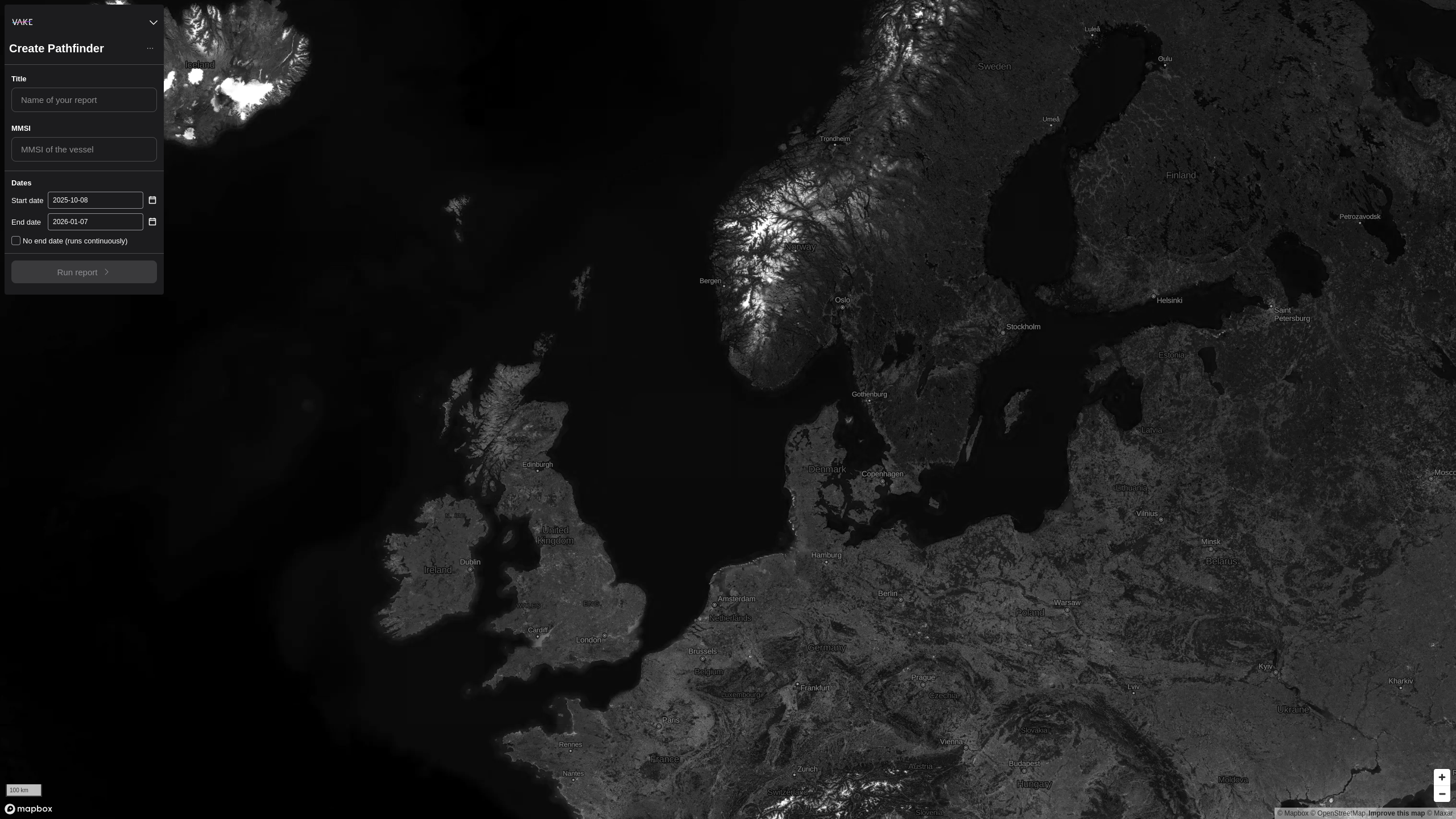
- Go to VAKE Studio and log in to your user account
- In the top-right corner, press 'create new' and select ' Pathfinder' from the list.
- Add desired title of the Pathfinder Subscription
- Add MMSI of your vessel of interest.
- Select a start date and an end date. (Optionally, select 'no end date'. The Subscription will then update live as we get more data)
- Click 'Run Report'.
You will automatically be redirected to the subscription, and (depending on the length of the time period) the processed insights will appear swiftly.
You can always navigate back to your subscription by heading to the Home page.
Create Overwatch-report
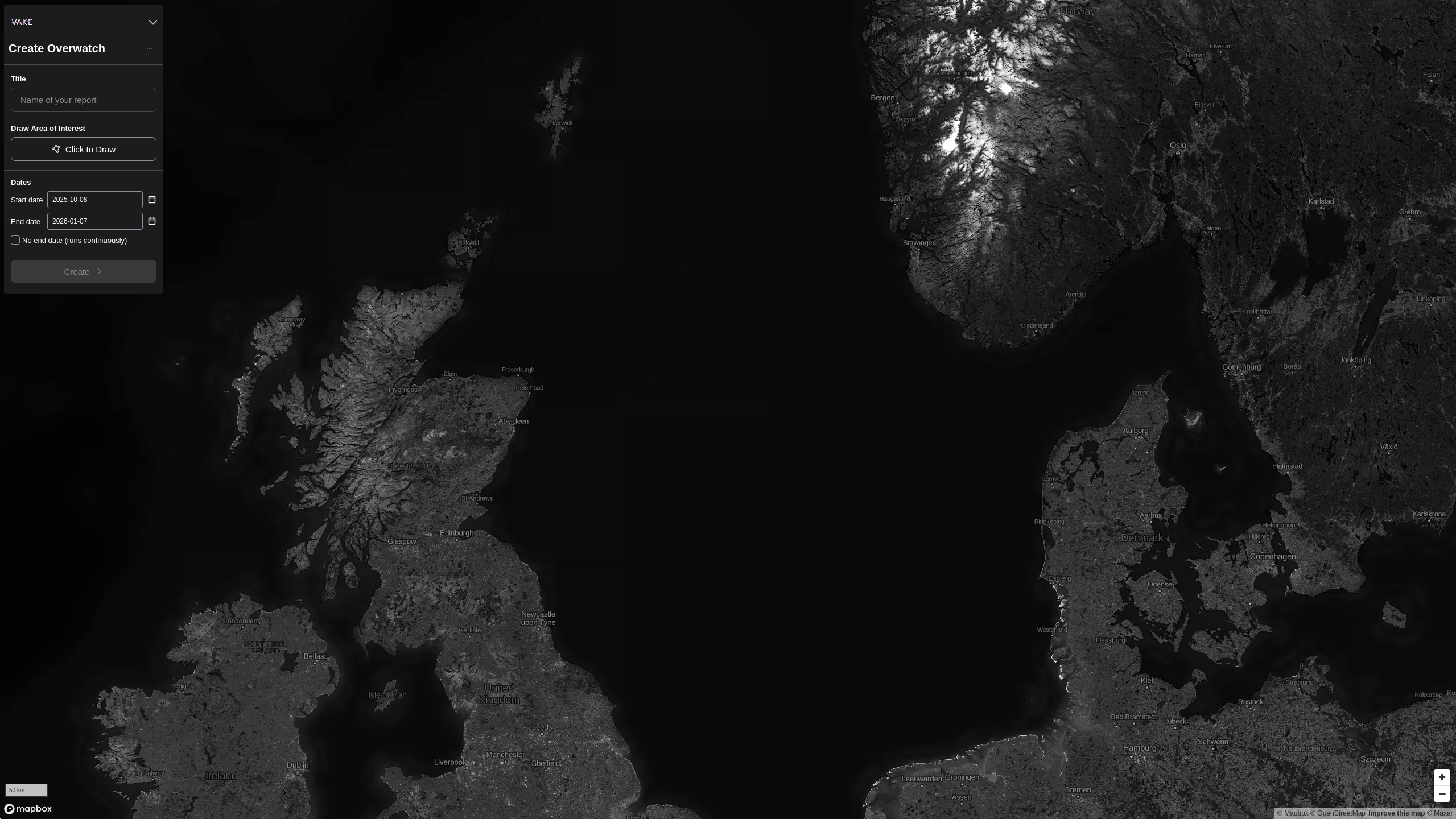
- Go to VAKE Studio and log in to your user account
- In the top-right corner, press 'create new' and select ' Overwatch' from the list.
- Add desired title of the Pathfinder Subscription
- Click 'Click to draw'. Drag to where you want to create an Area of Interest. Then click to start drawing the area in the map. Click once to add a point, and double click to finish drawing of your Area of interest.
- Select a start date and an end date. (Optionally, select 'no end date'. The Subscription will then update live as we get more data)
- Click 'Create'.
You will be navigated to your report right away. How long it takes to completely process depends heavily on the size of your Area of Interest and the selected duration (start date/end date). The more area coverage and the longer the duration, the more data will need to be processed for the report, meaning it will take longer time.
Find previously created Subscriptions

- Go to VAKE Studio and log in to your user account
- Both Pathfinders and Overwatch
- Browse the lists for all reports created by you and other persons in your team.
Continue on to the next session to learn more about what you can do from the Home Page.